
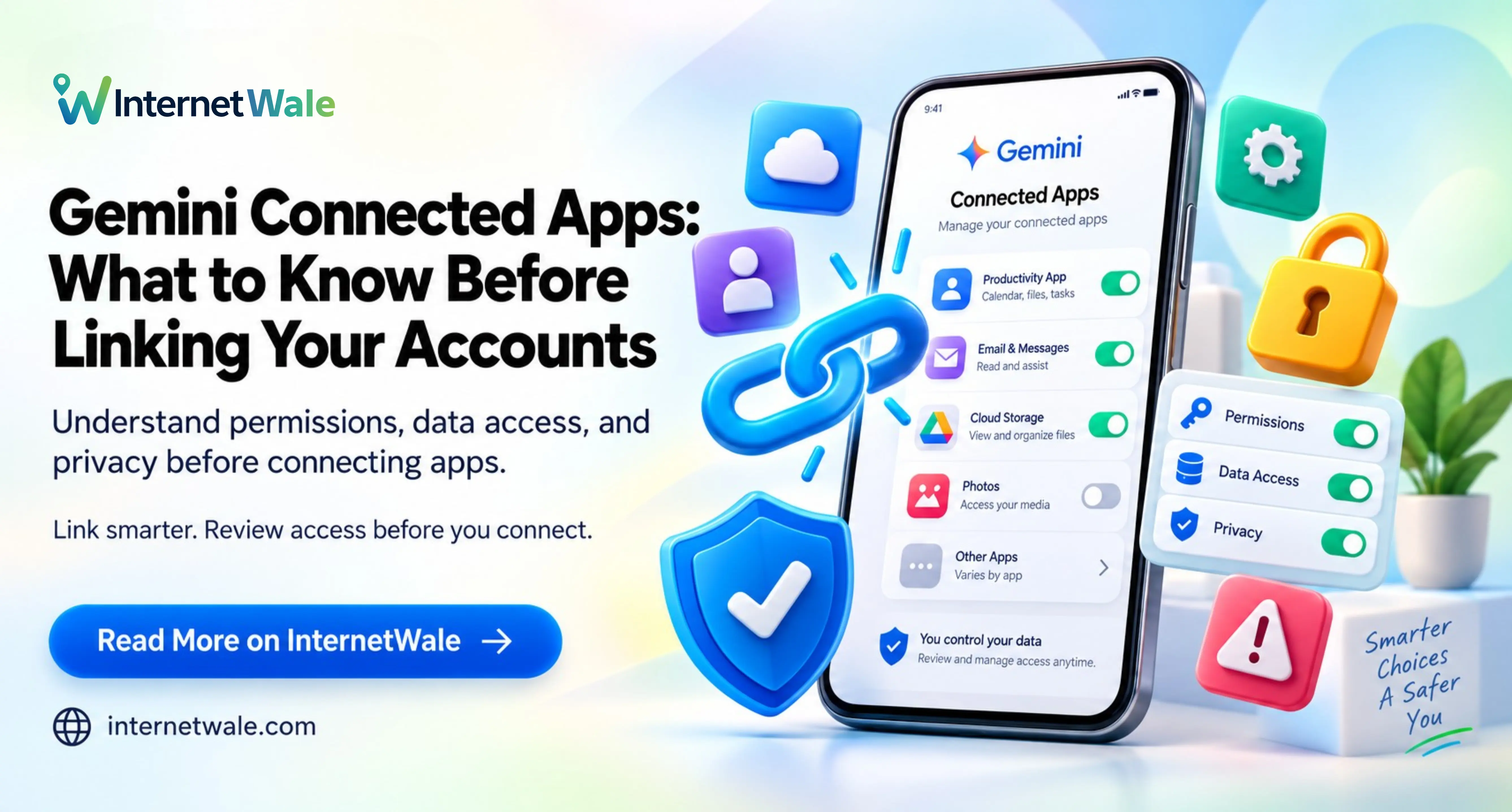
A useful AI assistant can save you from searching through five different apps. Connecting those apps, however, deserves more thought than clicking through a permission screen. You are deciding which accounts Gemini can work with, what information a task involves and whether an answer should become an action.
Google's latest expansion makes this a timely question. Before linking your accounts, start with three checks: is the integration available to you, does its access match your purpose, and do you understand how to disconnect it?
What changed in September 2026?
On 23 September 2026, Google announced another wave of Connected Apps for Gemini. The announcement covers productivity services such as Airtable, Linear and Zoho, creative tools including Adobe and Webflow, and lifestyle services such as Peloton. Google says users can connect supported apps through settings or bring them into a conversation through an @ mention or a direct request.
This gives users more ways to work across services, but the announcement is not a promise that every listed integration is available to every Indian account. Read the official rollout announcement alongside the individual app requirements.
Check availability in India before planning your workflow
Google's availability table distinguishes between countries, account types, ages, languages and supported versions of Gemini. As checked on 30 September 2026, Zoho CRM, Zoho Mail, Zoho Desk, Zoho Bigin and Zoho Projects are listed for India, with a personal Google Account, an age requirement of 18 or above and English support.
By comparison, the table lists Airtable and Linear as US-only. These restrictions can change, so check the current Connected Apps availability table before relying on a feature. A company appearing in a launch announcement does not establish that your particular account can use its integration.
For Indian teams, this check should happen before building a daily process around an app. Confirm that the required action is supported, too: finding information and changing records are different capabilities.
Read permissions as a practical decision
Start with the outcome you need. Perhaps you want a summary of project tasks, a draft reply or help locating a document. That purpose should guide the access you approve.
Confirm the account: Check the email address and workspace shown during connection, especially if your browser holds both personal and business logins.
Read the access request: Understand whether the integration can retrieve information, create content or change existing records.
Check the destination: Before asking it to act, identify the correct project, recipient or folder.
Keep the first task small: Test with ordinary, non-sensitive material you are authorised to use.
A sensible first request might be: “Summarise the open tasks in this project without changing anything.” Review the result against the original app. Once you understand the behaviour, consider whether broader tasks would actually save time.
Connect deliberately and verify the result
On a computer, open Gemini, sign in to the intended account and find Connected Apps in settings. Browse the app details, review supported actions and follow the connection instructions. Google also allows you to type @ in a prompt and select an available app.
Use Google's Connected Apps management guide if the controls look different on your device. The apps shown depend on your account and the Gemini version you are using.
Write requests with clear limits. Specify a date range when summarising messages, name the project when finding tasks and ask for a draft when you want to review wording before sending it. After an action, check the original service for the saved result. A confident response alone should not replace that check.
Run a small test before depending on it
Imagine you manage a weekly content calendar. Choose a test project with a handful of tasks and ask Gemini to identify which ones are due this week. Compare its answer with the actual dates, owners and statuses. Then ask for a draft update you can review, without publishing or sending it.
Notice what needed correction. Did it choose the right project? Did it distinguish a due date from the date a task was created? Was an important item missing? These checks tell you more about usefulness than a polished paragraph does.
Repeat the task with clear instructions before giving it wider responsibility. If the original app and Gemini disagree, use the source record to investigate. Keep your existing process available until you are comfortable with the new workflow and know how to recover from a mistake.
Understand Keep Activity before turning it on
Keep Activity affects more than whether you can see earlier conversations. Google explains that saved Gemini activity can be used to improve its services, including AI models, with human review. Third-party services handle information they receive according to their own policies. Read the Gemini Apps Privacy Hub before connecting accounts containing sensitive material.
With Keep Activity off, future chats are not used to train Google's AI models unless you submit feedback. Google still retains those conversations for up to 72 hours for service and protection purposes. Some Connected Apps become unavailable when the setting is off.
For personal accounts, Google's activity management guide explains how to review conversations, delete selected activity and change automatic deletion. The default automatic deletion period is 18 months, with other options available. Choose a setting deliberately instead of enabling it only to make a connection button work.
Disconnecting an app does not erase everything
Turning an app off in Connected Apps settings and deleting previous information are separate steps. Google states that disconnecting an app does not delete data already in Gemini Apps Activity. Deleting Gemini activity also does not remove information that another app has received; that service's policies and controls apply.
If you want Gemini to stop remembering information obtained through supported personalisation connections, Google's personalisation guidance describes deleting the relevant chats and disconnecting the source app. Doing only one can leave the other route available. Review the original service separately if you also want to remove information there.
Make an account review part of your routine when a project ends, a device changes hands or a connection stops being useful.
Business accounts need a separate check
Being able to connect an account does not establish that your employer permits it. Google's work and school account guidance explains that eligibility and administrator controls differ. Confirm the approved account and permitted data before connecting a client workspace or company system.
Keep business experiments limited to material you are allowed to process. Avoid testing a new workflow with customer records simply because they are convenient examples.
Where your internet connection fits
Connected workflows also depend on your everyday connection for accessing services and transferring files. If uploads fail or connections repeatedly drop, compare the behaviour across devices and services before buying a faster plan.
InternetWale helps you discover and compare broadband options for your locality. Consider your household's simultaneous usage, upload needs, plan terms and provider support; confirm availability at your exact address with the provider. A broadband upgrade cannot unlock an unavailable integration or guarantee faster AI processing.
The useful approach is to connect one relevant app, test one clearly defined task and review what happened. Expand your workflow when the benefit is clear and the access still fits your needs.